Artwork guide

Prep your artwork

Clean files print clean. Spend a few minutes on these steps before you upload and your transfers will come out sharp, bright and ready to press.

PNG or PDFTransparent background
300 dpi+At the final print size
RGBColor mode
0.019 inThinnest line (1.4 pt)
Solid edgesNo glows or soft shadows
01

Use PNG or PDF with a transparent background

Our builder accepts PNG and PDF files, and PNG is the best choice. Anything that is not transparent will print, including a white box or the gray-and-white checkerboard that some AI tools bake into their downloads. Remove the background first, then save with transparency.

  • Save as a transparent PNG
  • Check your edges against a black background
  • No white or checkerboard backgrounds
  • No screenshots or photos of a screen
02

Build at 300 dpi or higher

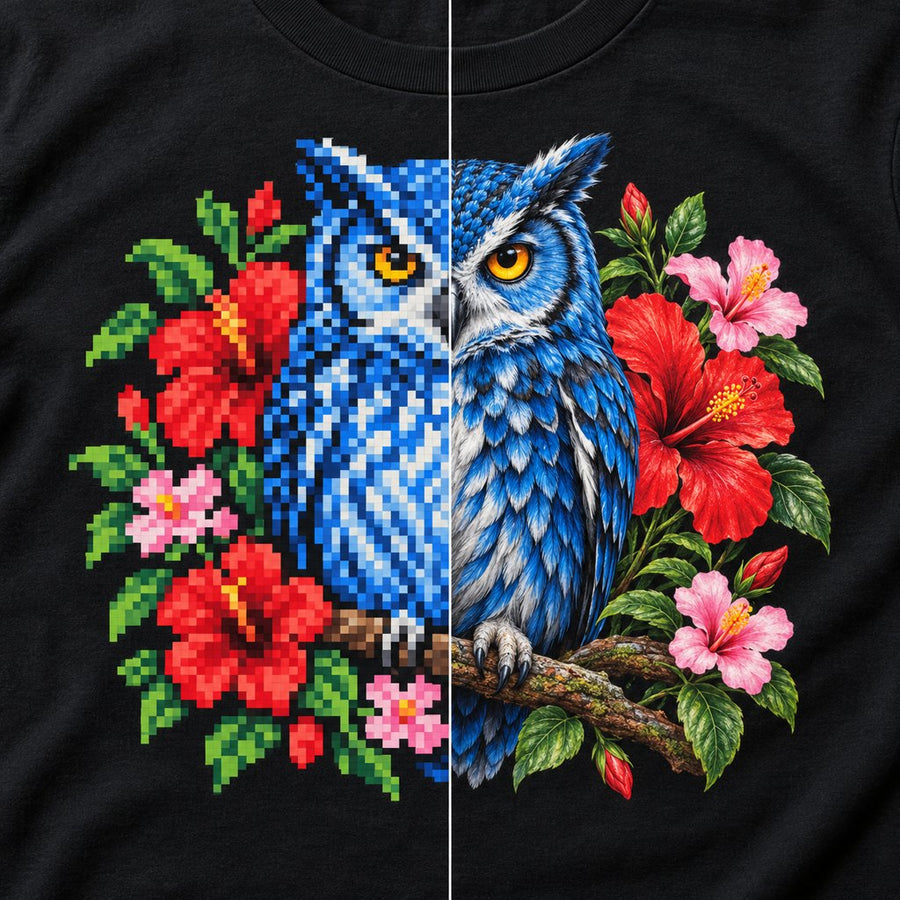
We highly recommend a minimum of 300 dpi at the size you will print. Lower resolution will still print, but edges can look soft or blocky, and stretching a small image does not add real detail. Start with a large file and scale it down.

  • Set your file to 300 dpi at its final printed size
  • Don't enlarge a small image to fit
The same print shown low resolution and blocky next to high resolution and smooth
72 dpi vs 300 dpi
03

Keep your edges solid

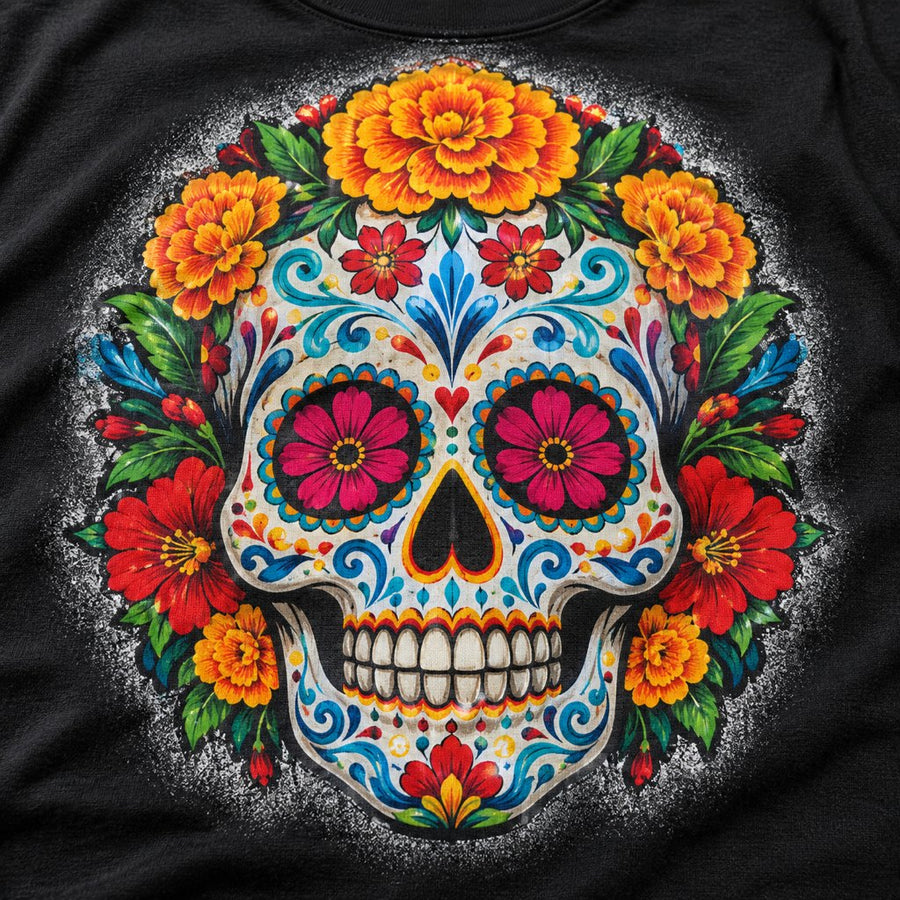
A soft edge is made of semi-transparent pixels. The printer cannot print half a dot, so it reads each of those pixels as a full pixel, puts white underneath, and the result is a thin white outline or speckled fringe on the garment. Every pixel in your file should be fully on or fully off.

  • Use crisp, anti-alias-free edges
  • No feathered or blurry edges
Soft edge: gray pixelsSolid edge: on or off
Print with a speckled white fringe around the design
Soft edge
The same print with crisp clean edges
Solid edge
04

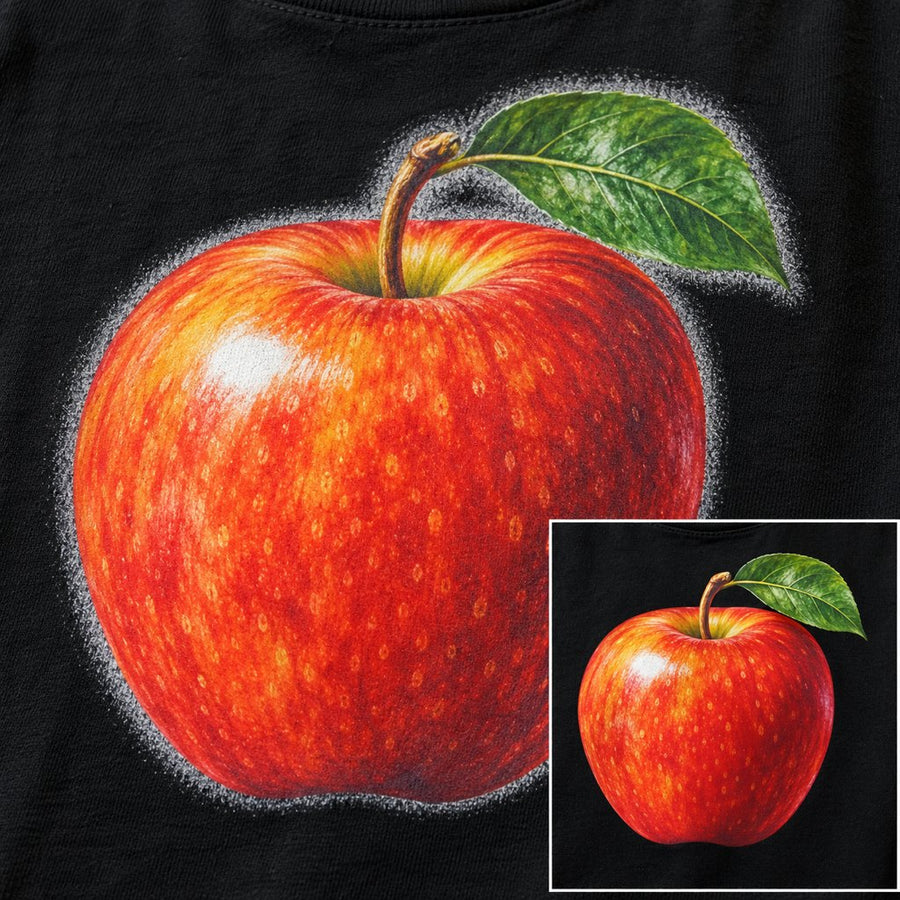
No glows, drop shadows or feathering

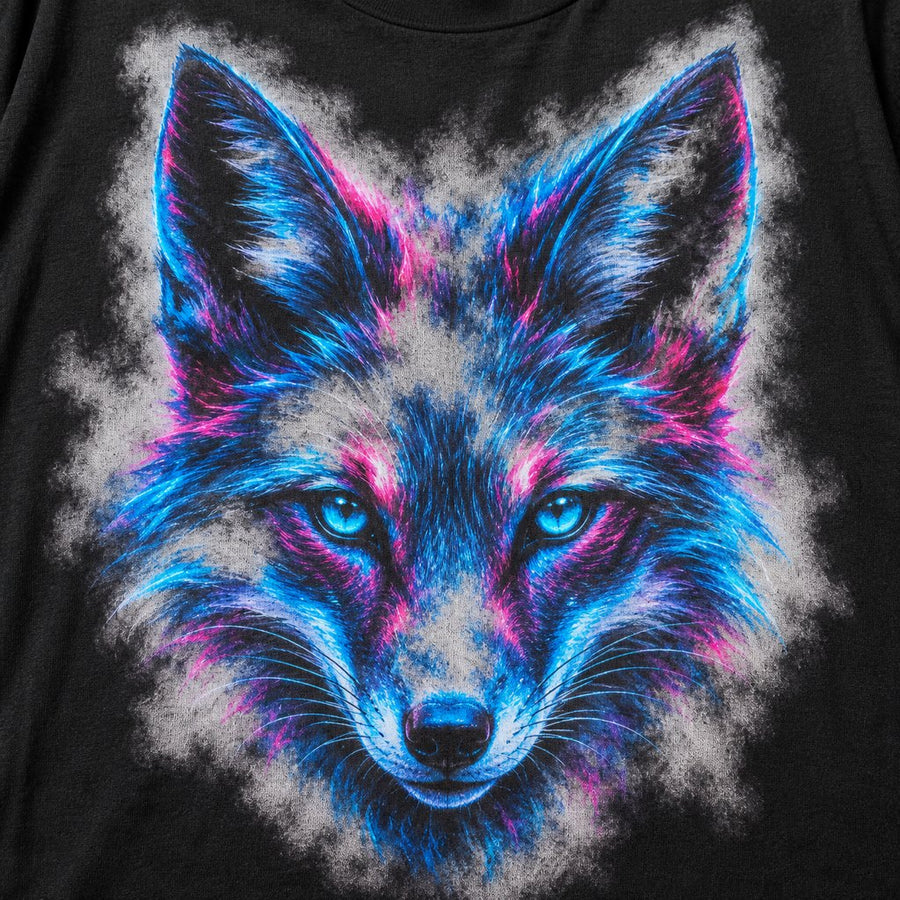
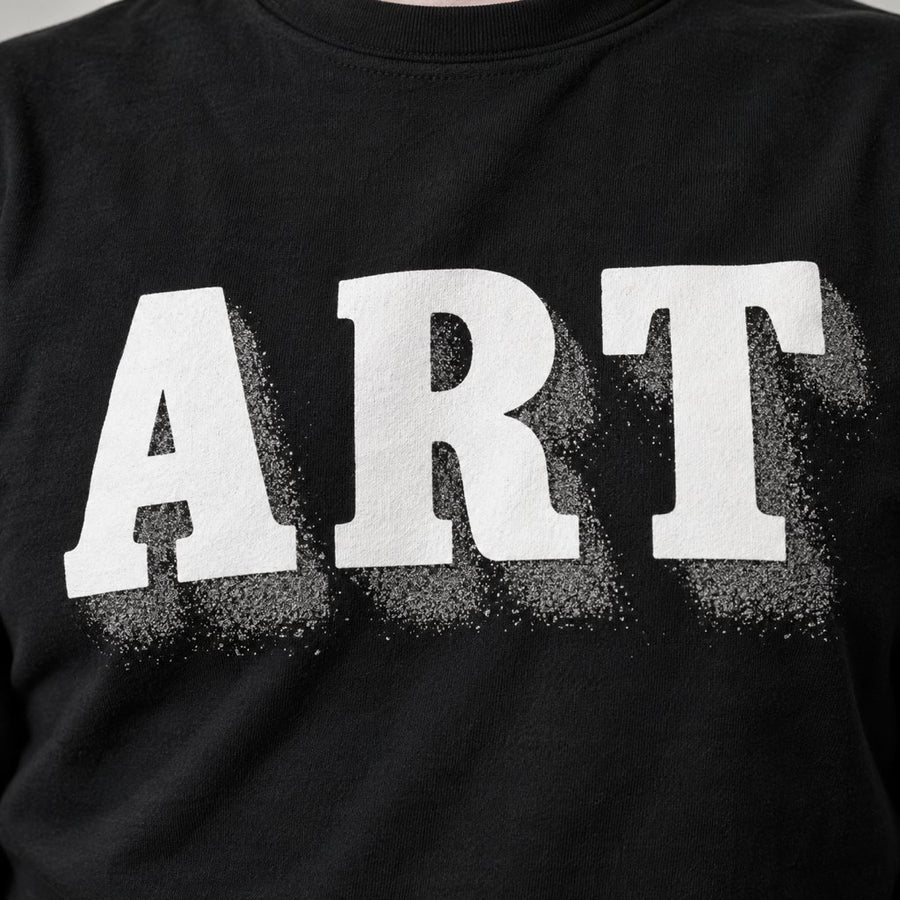
These effects look subtle on a screen, but a DTF printer reads every visible pixel as something to print, no matter how faint. It lays a white underbase under it, and that white collects ink and adhesive powder. The result is a gray-white haze or a grainy smudge on the garment.

If your design needs a shadow, build it from solid shapes, or leave it out.

  • No outer glow or soft drop shadow
  • No fade-out or faded transparency
Glowing artwork with a cloudy gray-white haze around it
Glow printed as haze
White letters with a grainy gray shadow smudge
Shadow printed as smudge
05

Be careful with fades and halftones

Soft gradients that fade to nothing, and rough halftone edges, can print as a gray fringe on dark garments. A clean solid edge is the safest choice. If you want a fade, use a sharp, well-made halftone. We are putting together some helpful resources on this soon.

A print with a fuzzy gray fringe and an inset showing the same print with clean edges
Fuzzy edge vs clean edge
06

Thin lines: 0.019 in (1.4 pt) or thicker

Free-floating lines thinner than this may not hold. At 300 dpi that is about 6 pixels. Thicken any hairlines before you upload, and zoom in to 300% to check that fine details look crisp and not fuzzy.

Why it matters: we print with a 0.1 mm white ink choke, which pulls the white layer slightly in from the edge of your artwork to avoid a white halo. Lines at 0.019 in (about 0.5 mm) or thicker leave plenty of white underneath, so they stay solid.

Too thin: may not holdMinimum: 0.019 in (1.4 pt)Thicker is better
07

Crop tight

Extra transparent space around your art takes up room on the sheet and can throw off sizing. Crop right to the edge of the artwork, and check for stray, nearly invisible pixels in the margins by viewing your file on a black background.

08

Build in RGB

Work in RGB color mode. Our 9-color printer prints a wider range of colors than CMYK, and RGB artwork shows that off best. Keep in mind that colors on a screen can look slightly different from the finished print.

09

Think about how it feels

Big solid blocks of ink feel heavier on the garment. Leaving some negative space makes a print lighter and softer to the touch.

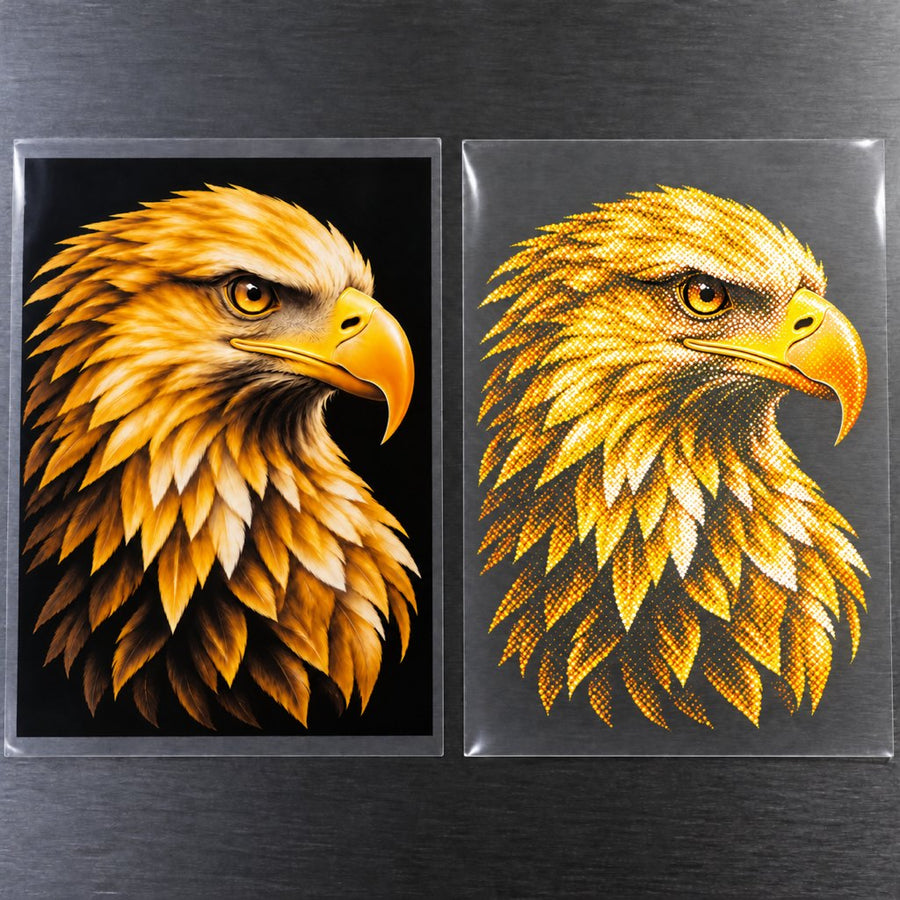
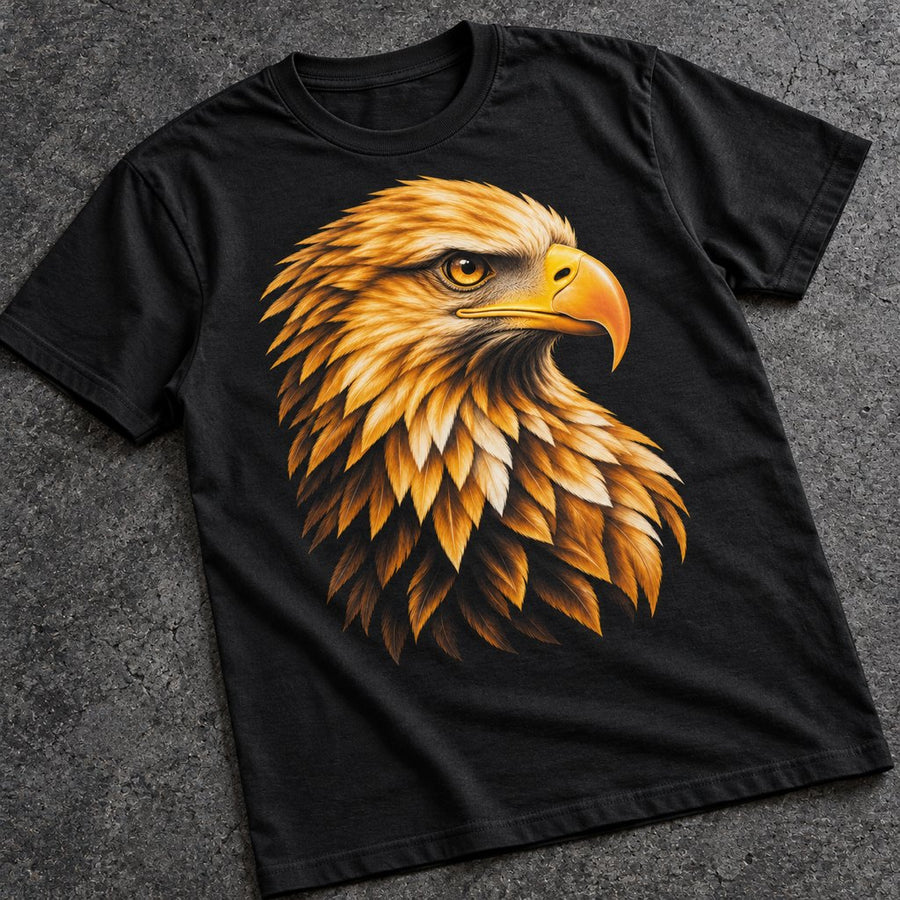
Some designers also remove the black areas of a design so the shirt color shows through instead (called a knockout). This only works on black or very dark garments. We do not offer it as a service, but you can prepare it in your own file, and we are putting together some resources to help.

Two transfer films, one with a black box printed and one with the black left clear
Normal vs black knockout
A black shirt with a print that blends into the fabric
Finished knockout print

Final check before you upload

  • Transparent PNG or PDF, with no white or checkerboard background
  • 300 dpi or higher at final print size
  • RGB color mode
  • Edges are solid, with no glows or soft shadows
  • Lines are 0.019 in (1.4 pt) or thicker
  • Cropped tight to the artwork
  • Zoomed in at 300% and the edges look sharp

Ready to build?

Your file looks good? Start your gang sheet, or read how to press your transfers.